A PlayStation error code is usually more useful than the message “something went wrong.” The letters and numbers displayed by a PS4 or PS5 can point toward a specific category of problem, such as PlayStation Network connectivity, account authentication, payment information, system software, digital licenses, voucher redemption, or game data.
The important part is not to treat every PSN login error as the same problem. A wrong password, a PlayStation Network outage, an unstable Wi-Fi connection, a suspended account, and a failed 2-step verification request can all prevent sign-in, but each requires a different solution.
This guide focuses on the common PS5 account errors and common PS4 account issues most likely to affect signing in, purchases, digital games, licenses, codes, Remote Play, and access to PSN.
PlayStation error codes identify the type of failure detected by the console or PlayStation service. Sony maintains separate searchable lists for PS5 and PS4 because the two systems do not always use the same codes for equivalent problems. For example, PS5’s official error list includes codes for failed PSN authentication, maintenance, network timeouts, system software, payment problems, and game/application errors, while PS4 has its own CE, NP, NW, WC, WS, E and SU codes.
That means searching for all PlayStation error codes or all PS5 error codes can be useful when you already know the exact code, but troubleshooting becomes faster when you first identify the category of failure.

|
Error category |
Typical symptoms | What to check first |
|---|---|---|
|
PSN sign-in |
Can’t log in, password rejected |
Credentials, PSN status, account security |
|
Network |
Server unavailable, timeout, connection lost |
Internet test, router, PSN status |
|
Account/security |
2SV problem, suspension, unauthorized activity |
Security settings and account status |
|
Digital license |
Padlock, purchased game unavailable |
Correct account, Restore Licenses |
|
PlayStation Store |
Checkout or payment fails |
Payment method and billing information |
|
Voucher/region |
Code rejected or content unavailable |
Account region, code validity |
|
System software |
Updates fail or applications crash |
System update and storage health |
|
Remote Play |
Console cannot be found or session fails |
Same account, Remote Play settings, network |
The difference between PS4 error codes vs PS5 error codes is mostly in how the console identifies and labels individual failures. You should therefore search the code for the console on which it appeared rather than assuming a PS4 solution applies directly to PS5.
On PS5, for example, WS-116329-2 means the PSN sign-in ID or password does not match, while CE-112839-4 relates to connecting to PlayStation Network. Sony’s PS5 directory separately identifies maintenance, network, storage, software and authentication errors.
PS4 has its own extensive directory. Codes such as CE-33987-0 can relate to a network timeout during sign-in, NP-35000-8 indicates PlayStation maintenance, and CE-33950-0 relates to connecting to a server to verify a license.
Understanding the category is more useful than memorizing hundreds of codes.

A hardware error vs software error on PS5 can sometimes look similar. An application crash, failed update, unreadable system data, storage problem, network issue, or physical disc problem can each generate an error code.
As a general rule, account and PSN problems are more likely to involve sign-in, server, authentication, license or network messages. Hardware-related errors are more likely to persist independently of your PSN account and may relate to storage, discs or other console components. Sony’s official error-code directory separates these issues through the specific code displayed.
A PS5 sign in problem does not automatically mean the account is damaged. Start with the exact error message and determine whether PlayStation is rejecting your credentials or simply failing to reach its servers.
One straightforward example is PS5 error WS-116329-2. Sony identifies this as a mismatch between the PSN sign-in ID or password and advises checking the credentials carefully, including password capitalization. Testing whether the same account can sign in on another device can also help separate an account problem from a console-specific issue.
If you see a PSN login failed error, first verify:
For a forgotten password, Sony provides account recovery through the “Trouble Signing In?” process. If you no longer have access to the account’s email address or encounter suspicious changes to the account, PlayStation directs users toward its account recovery support process.
A PSN login server error is different from an incorrect-password error. Codes such as WS-115338-1 indicate that the console cannot connect to the server and may appear when a service is undergoing maintenance. Sony recommends checking PlayStation Network status first and then troubleshooting the console’s network if PSN is active.
Similarly, error NP-104627-0 can appear when a PS5 loses its connection to the server. Recommended checks include signing in again, testing the internet connection, restarting the router and console, and using a wired connection where practical.
For a PSN login error can’t connect to server, avoid repeatedly resetting your password until you know the account credentials are actually responsible. If the console cannot reach PSN at all, changing a valid password will not repair the network connection.
Security settings can also produce a sign in PlayStation error. PS5 codes such as WS-117224-7 and WS-117176-3 are associated with 2-step verification problems.
If the verification code does not arrive, PlayStation recommends requesting the code again, checking the phone’s network connection and using stored 2SV backup codes when available. Users who have lost access to both their verification method and backup codes may need PlayStation’s account recovery assistance.
A proper PlayStation account security checkup should include a unique password or passkey, protection of the connected email account, secure 2-step verification settings and a review of unfamiliar account activity.
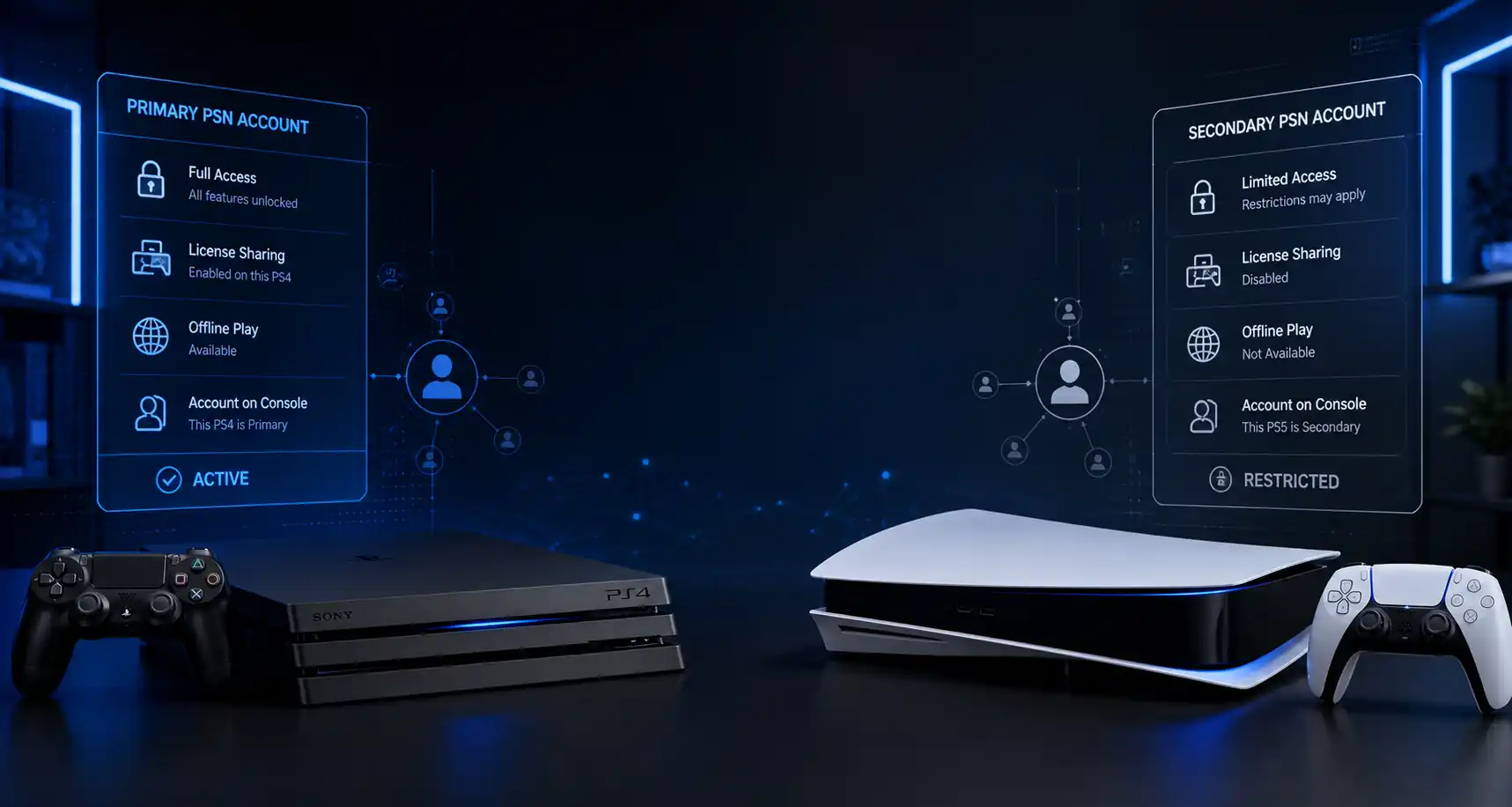
Many searches for account compatibility issues on PS5 are actually caused by account region, age restrictions, family settings, third-party account linking or ownership of the content rather than the PS5 itself.
If an error only affects a particular game, service or linked application, test general PSN access first. If normal PSN features work, investigate the service-specific account connection instead of changing the entire console configuration.
For third-party services, PlayStation allows users to review authorized apps and unlink applications from Account Management or the console settings. This can be relevant when troubleshooting linked-service authentication problems.
The message “PS4 sign in to PlayStation Network an error has occurred” can be frustrating because the wording alone does not identify one cause. The exact error code displayed with the message is therefore important.
A PS4 cannot sign in error can result from network connectivity, PSN maintenance, authentication or account restrictions. Sony’s PS4 error-code directory includes multiple network and PSN-related codes, including errors for failed server connections, connection timeouts and service maintenance.
For example, NP-31971-1 means the console failed to connect to PlayStation. Sony recommends checking PlayStation status, restarting the PS4, restarting the router and trying again if the issue is temporary.
When users search “PS4 can’t sign in an error has occurred”, the best troubleshooting sequence is therefore:
The phrase “an error has occurred in PS4” is a generic description, not one specific failure. It can refer to the application, system software, account connection or PlayStation Network.
The query “an error has occurred in the following application PS4” usually points toward an application-level problem, while “an error has occurred in the system software PS4” indicates a different troubleshooting path involving system software rather than account credentials.
This is why searching only “what does an error has occurred mean on PS4” often produces confusing results. The accompanying error code is the more valuable diagnostic information.

For how to fix an error has occurred in the system software PS4, begin by checking for the latest PS4 system software and restarting the console. If system software continues to malfunction, Sony’s support process may involve Safe Mode and system software troubleshooting. PlayStation Support specifically directs persistent system-software cases toward Safe Mode and the official system update or reinstall procedures.
Do not treat this as a PSN password problem unless the error specifically concerns sign-in.
The safest approach to troubleshooting PSN account issues is to start with low-risk checks and move toward account recovery or PlayStation Support only when necessary.
When a PSN login error has occurred, check PlayStation Network status before making major account or console changes. Many official PS4 and PS5 network-error instructions begin with this step.
If PlayStation services are experiencing maintenance or an outage, local troubleshooting may not solve the problem until the affected service returns.
On PS5, use:
Settings > Network > Connection Status > Test Internet Connection
If the connection is unstable, restart the router, bring the console closer to the access point or try Ethernet where possible. These are among Sony’s recommended steps for server and network errors.
A similar principle applies to PS4: verify the console can actually reach the internet before diagnosing the account itself.
If PSN is online and the network test passes, check your sign-in ID and authentication method.
For an incorrect password, use PlayStation’s password recovery system. For lost email access, unexpected account changes or an inaccessible passkey, account recovery may require PlayStation’s Online Assistant.
Never give an account password, 2SV backup code or email password to a seller or unknown third party claiming to “repair” a PSN account.
Some problems that appear to be account errors are actually digital-license issues. If a purchased game shows a padlock, an add-on cannot be located, or eligible content fails to start, PlayStation recommends restoring licenses.
On PS5:
Settings > Users and Accounts > Other > Restore Licenses
On PS4:
Settings > Account Management > Restore Licenses > Restore
Sony states that restoring licenses does not affect saved data.
This is particularly useful when a digital purchase exists on the correct account but the console is not recognizing its entitlement.
If you purchase digital PlayStation products from PSNShop, keeping the product details and knowing which account and region are supposed to use the content makes troubleshooting much easier if a license or activation problem appears.
A PSN account purchase error, PlayStation Store transaction error, or PSN error during digital game purchase should be investigated before repeatedly attempting checkout.
For PS5 error WS-113947-5, Sony recommends checking the registered payment method, including expiration date and billing address, trying another payment method where appropriate, and waiting before retrying if payment information has been changed repeatedly.
PS5 error CE-112987-8 can affect purchasing, downloading or installing content. Sony’s troubleshooting includes updating system software, signing out and back in, restarting the console, restoring licenses and checking payment information when the failure occurs during a purchase.
On PS4, E-8210604A specifically indicates a payment error and PlayStation recommends reviewing the stored card information or trying another payment method.
|
Store problem |
What to check |
|---|---|
|
Buying games PlayStation Store error |
PSN status and payment details |
|
PlayStation Store checkout error code |
Billing address, card validity, available payment methods |
|
PlayStation account payment method issue |
Expiration date, account country/region, card information |
|
Purchase missing after payment |
Transaction history |
|
Unexpected charge |
Transaction history and account security |
|
Digital game unavailable after purchase |
Game Library and licenses |
You can review purchases on PS5 through Settings > Users and Accounts > Account > Payment and Subscriptions > Transaction History. PlayStation also provides transaction-history options for PS4 and PlayStation App.
For buyers at PSNShop, checking the required region, platform and redemption method before ordering can prevent a store purchase from being mistaken for a PSN technical failure.
A PS5 code region problem has a straightforward rule for PlayStation Store vouchers: the voucher must match the region of the PlayStation account. PlayStation states that voucher codes from a different Store region cannot be redeemed and that an account’s country/region cannot simply be changed after account creation.
This matters for searches such as:
PlayStation Store vouchers contain 12 digits, can normally be redeemed only once and must correspond to the account region. Funds or redeemed content also cannot simply be transferred between accounts after using a code on the wrong account.
The same principle should be checked when researching a specific product such as PS5 GTA 6 code region restrictions: verify the actual voucher or product’s stated region rather than assuming every digital code has identical requirements.
Queries about PS5 game region code, PS5 disc region code, or PS5 DVD region code should not automatically be treated as PlayStation Store voucher issues. Disc/media compatibility and PS Store account-region rules are separate topics; use the exact error message and product type to determine which one applies.
Not every PSN-related problem occurs directly on a PS4 or PS5. Authentication and connectivity can also affect PlayStation App, PS Remote Play, PlayStation Portal and third-party services linked to PlayStation accounts.
A PlayStation Remote Play connection error can result from account, console configuration or network issues. PlayStation requires Remote Play to be enabled on the console, the console to be connected to the internet and the Remote Play device to use the same PlayStation account. Keeping the console system software current is also part of the recommended setup.
If you encounter a PS Remote Play sign in error, first determine whether the account itself can sign in normally outside Remote Play. If it can, verify the Remote Play configuration and connection instead of immediately resetting the account.
A PS App sign in error can similarly originate from account credentials or security settings rather than the application itself. Test whether you can access Account Management through another supported method. If your password is rejected everywhere, use account recovery; if only one application is affected, focus on that application after confirming PSN account access.
For a PS Portal sign in error or PS Portal sign in to PlayStation Network error, verify the account, Wi-Fi connection and PS5 Remote Play setup. PlayStation’s Portal setup requires the PS5 to use the same account, remain connected to the internet, have current system software and have Remote Play enabled.
PlayStation also maintains a dedicated Portal error-code directory for device-specific problems.

A PS Vita sign in error or PS Vita PSN login error should be treated separately from modern PS5 login codes because legacy PlayStation devices may use different sign-in requirements. When troubleshooting older hardware, use the instructions provided for that specific device instead of applying a random PS5 error-code solution.
An Epic Games PSN login error may involve the relationship between a PlayStation account and the third-party service rather than PlayStation Network itself. Confirm that normal PSN sign-in works first, then investigate the linked service.
This principle is useful for PS4 and PS5 cross-play error codes as well: an online multiplayer or cross-platform login failure may come from the game’s own servers, account linking or platform restrictions rather than the console’s PSN authentication.
A Chiaki PSN login error or Chiaki NG PSN login error concerns third-party Remote Play software rather than Sony’s official PS Remote Play application. Troubleshoot your PlayStation account independently first. If official PSN sign-in and official Remote Play work correctly, the remaining issue is more likely specific to the third-party application or its configuration.
For account security, never enter sensitive PlayStation credentials into software you do not trust.
A reliable PS5 account repair guide does not begin with factory-resetting the console or changing every account setting. It starts by identifying what is actually failing.
Use this order:
This approach prevents unnecessary changes and helps distinguish a local connection problem from a genuine PlayStation account issue.
For digital-game customers at PSNShop, it is also worth keeping the order information, product region and activation instructions available until the game or code has been successfully activated.
Contacting Sony Support for account issues is appropriate when normal troubleshooting cannot restore access, particularly if you have lost access to the account email, cannot recover 2SV, suspect unauthorized changes, encounter a suspension or need assistance with a transaction that cannot be resolved from account history.
PlayStation directs users to the appropriate support categories for account and security, Store and refunds, subscriptions, games, hardware and connectivity.
For effective PSN customer support help, prepare the exact error code and relevant account or transaction information before contacting support. Never publish passwords or verification codes in screenshots or public support discussions.
First record the exact error code, then check PlayStation Network status and test your internet connection. If PSN and your connection are working, verify your sign-in email, password and 2-step verification settings. A password mismatch and a server-connection failure require different fixes, so avoid resetting account information until you know authentication is actually the problem.
The message itself is generic. A PS4 an error has occurred when trying to sign in issue can come from PSN maintenance, an unstable network, account authentication or another service problem. Check the accompanying error code first. Then check PSN status, test the PS4 internet connection and verify your account information before trying more disruptive troubleshooting.
If the password works on another device, check PlayStation Network status and test the PS5 internet connection. Sign out and sign back in, restart the console and router, and review 2-step verification if enabled. If you receive unexpected security messages or cannot access the registered email or verification method, use PlayStation’s official account recovery process.
PlayStation Store voucher codes must match the region of the account on which they are redeemed. PlayStation states that a voucher from another Store region cannot be redeemed and that the account’s country/region cannot simply be changed afterward. Check the code’s region before redeeming it, especially when buying digital products from another country or marketplace.
A PlayStation Store transaction error can be caused by payment details, a temporary Store or PSN issue, an unsupported payment method, billing information or account restrictions. Check PSN status, verify your payment information and review your transaction history before repeating the purchase. If a payment appears in history but the content is missing, check your library and licenses.
Contact official PlayStation Support when the documented troubleshooting steps do not resolve the error, or when the problem involves account recovery, lost access to an email or 2SV method, suspicious account activity, suspension, unauthorized transactions or another issue requiring account-level assistance. Keep the exact error code and relevant purchase details ready so support can identify the problem more efficiently.