Buying a digital game on PS5 is fast and convenient, but seeing a padlock icon next to a title you bought is frustrating. When this happens, your console cannot verify your digital entitlement with the PlayStation Network (PSN) servers.
(Need a deeper breakdown of how entitlements, accounts, and DRM work across generations? Read our complete guide to PlayStation digital licenses).
If you are dealing with locked games, missing DLC, or launch errors right now, you do not need theoretical DRM explanations. This step-by-step troubleshooting guide shows you exactly how to restore PS5 licenses, configure Console Sharing, fix lock icons, and get your games working again.
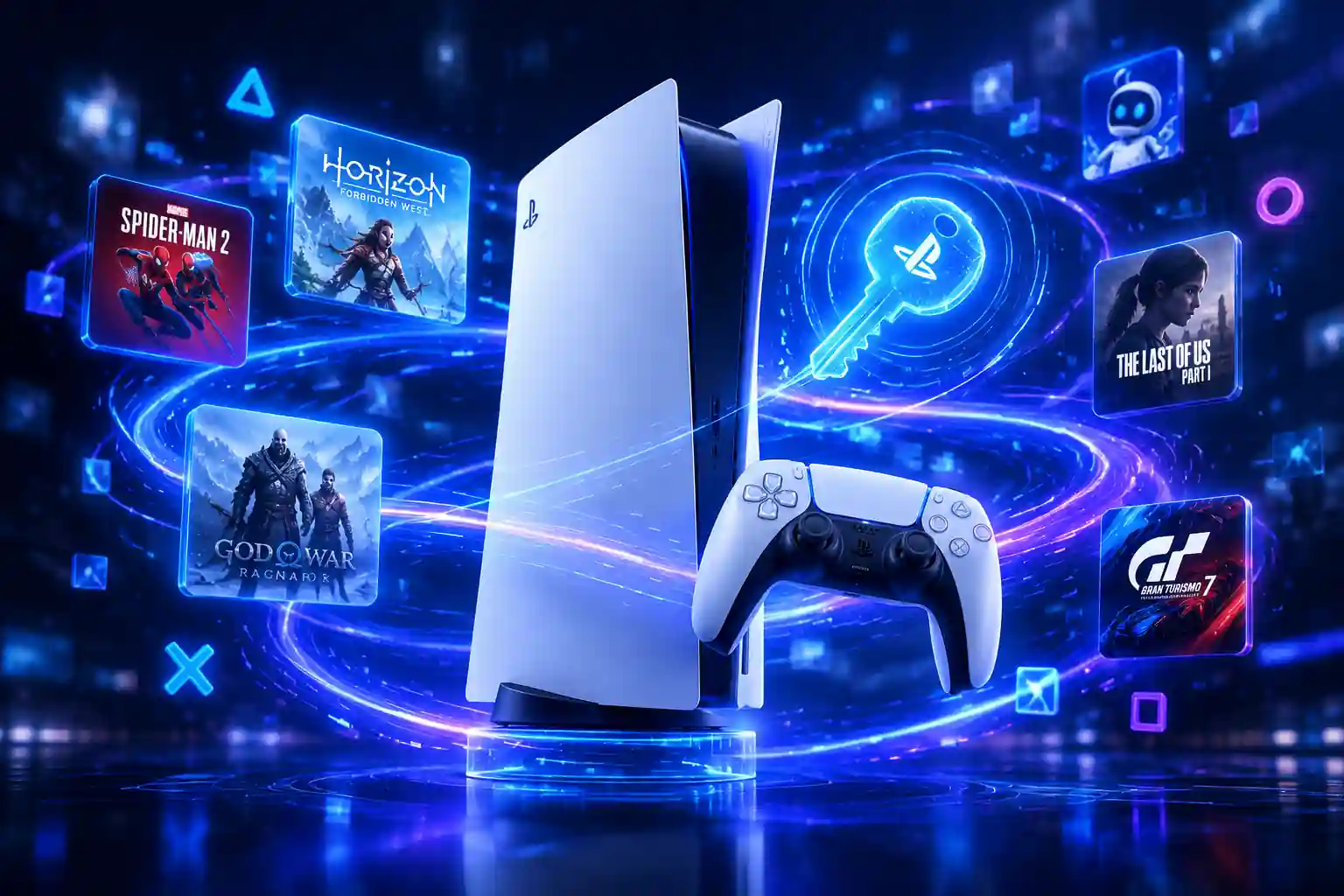
A padlock icon next to a PS5 game usually means the console cannot confirm that your active user profile holds a valid license to launch the game.
Here are the most common causes and immediate fixes:
| Problem / Symptom | Likely Cause | Immediate Fix |
|---|---|---|
| Padlock on game tile | License cache or network glitch | Run Restore Licenses in Settings |
| “Cannot use content” error | Wrong profile signed in | Switch to the PSN account that purchased the game |
| Other accounts cannot play | Console Sharing disabled | Enable Console Sharing and Offline Play |
| Game worked yesterday, locked today | PS Plus subscription ended or title left catalog | Check PS Plus status or purchase the game |
| DLC or add-on missing | License not refreshed after download | Restore licenses or redownload from Game Library |
| Offline game refuses to launch | PS5 not set as primary sharing console | Connect online once and enable Console Sharing |
The Restore Licenses tool reconnects your console directly with PlayStation Network to refresh your account’s digital purchase records. It does not delete game files, modify your save data, or change your settings.
If only one title has a padlock icon, you can restore it directly:
If you share a console with family members or want to play your digital library while disconnected from the internet, you must activate Console Sharing and Offline Play.
Without this setting enabled, your PS5 will require an active internet connection to ping Sony’s servers every time you boot a digital game. Furthermore, other local user profiles on the console will see a lock icon on your purchased titles.
Sometimes, a padlock appears because the system doesn’t recognize your console as the authorized device for the game license. This usually happens when “Console Sharing and Offline Play” is disabled or configured on a different console. If you aren’t sure how this setting works or how it impacts your game ownership, we’ve broken it down in detail. Understanding your console’s status is key to resolving permanent access issues: read our guide on [Primary vs. Secondary PSN Accounts: What You Need to Know]
Note: A single PSN account can only have Console Sharing enabled on one PS5 console at a time. If you recently upgraded to a new PS5 or set up a secondary console, disable the feature on your previous hardware first.

Digital PS5 licenses are permanently tied to the individual PSN account that paid for them. They cannot be transferred, traded, or merged into another account.
If a game remains locked after restoring licenses:
If the transaction does not appear, the game was purchased on a secondary account, a family member’s profile, or a different regional account. Sign into that specific account to launch the game or enable Console Sharing.
A frequent source of confusion is the difference between direct digital purchases and games claimed through PlayStation Plus.
Deleting a game to clear SSD space never deletes your digital license.
Your proof of ownership stays safe on your PSN account. Whenever you want to reinstall:
If an uninstalled game is missing from “Your Collection,” simply run the Restore Licenses step to resynchronize your library.
Deleting a game to clear SSD space never deletes your digital license. Your proof of ownership stays permanently attached to your PSN account. If you’ve ever worried about losing paid titles after uninstalling, check out our full walkthrough on redownloading PlayStation games and how to stop rebuying what you already own.
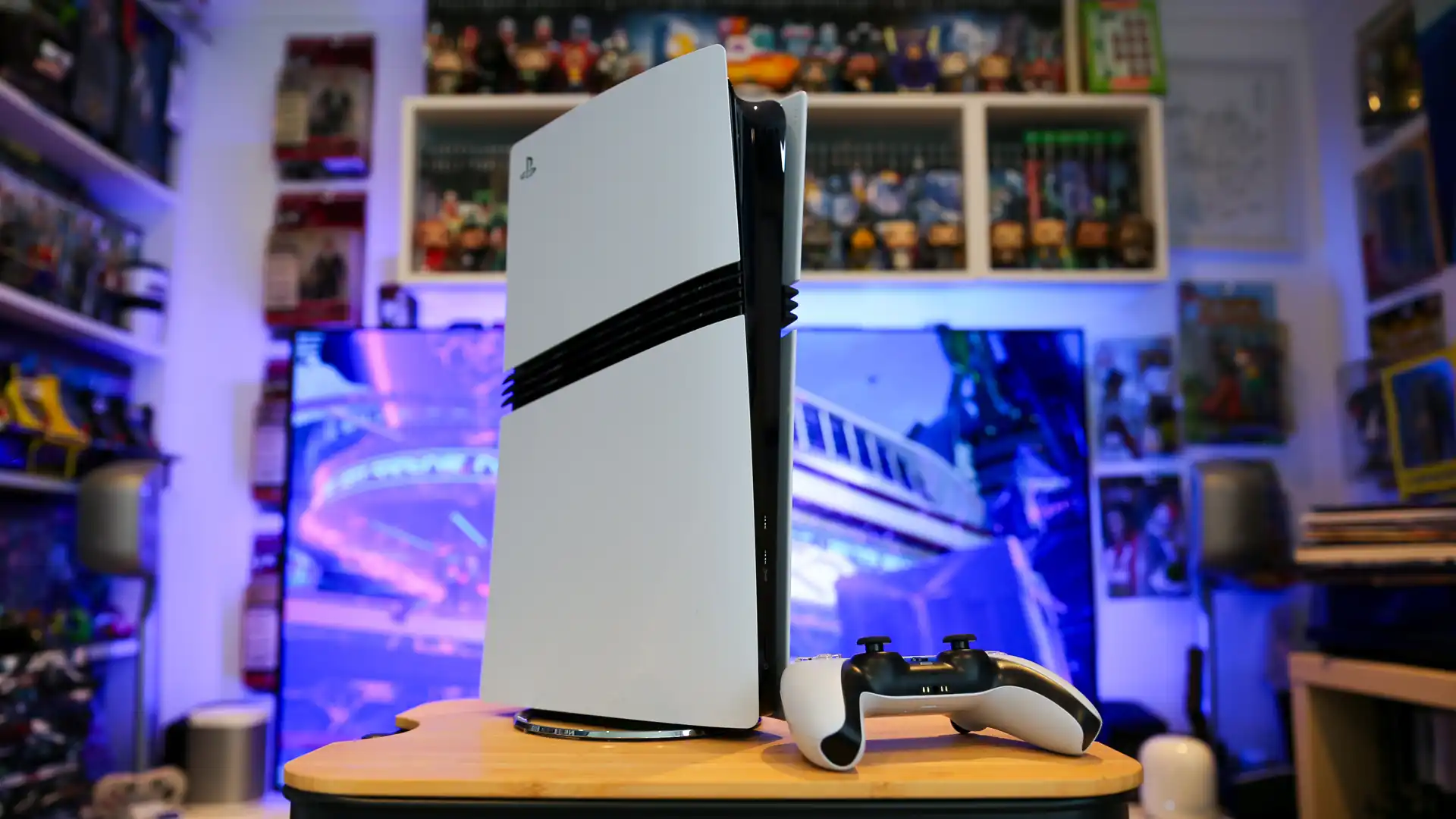
No. Restoring licenses only refreshes digital permission certificates between your console and PSN. Your save files, trophy data, installed game packages, and capture gallery remain completely untouched.
Yes, using PlayStation’s official sharing method. Account A enables Console Sharing and Offline Play on Console 1 (allowing any profile on Console 1 to play). Account A can then log in to Console 2 and play their games simultaneously while connected online.
This usually occurs if you purchased an edition different from the base store listing, or if you acquired the game via PS Plus and the listing is trying to show you the paid purchase option. Go to your Game Library > Your Collection instead of the PlayStation Store to find your owned download version.
No. Digital PlayStation licenses are personal and non-transferable under PlayStation Store terms. Unlike physical game discs, digital purchases cannot be resold, gifted after purchase, or moved to another PSN ID.